


ServBay Web Server Troubleshooting Guide
ServBay supports Caddy, NGINX, and Apache as the default web servers, providing you with a flexible local development environment. During usage, you may encounter issues such as inaccessible websites, slow loading, or errors like 500 Internal Server Error. This guide is designed to help you diagnose and resolve common web server issues within the ServBay environment.
Using ServBay's Built-In Troubleshooting Tool
ServBay offers a powerful troubleshooting tool that can automatically detect and flag common configuration and service issues. We strongly recommend running this tool as your first step whenever you encounter a problem.
Open the ServBay app and click Troubleshooting in the left sidebar to access ServBay's built-in diagnostics interface.
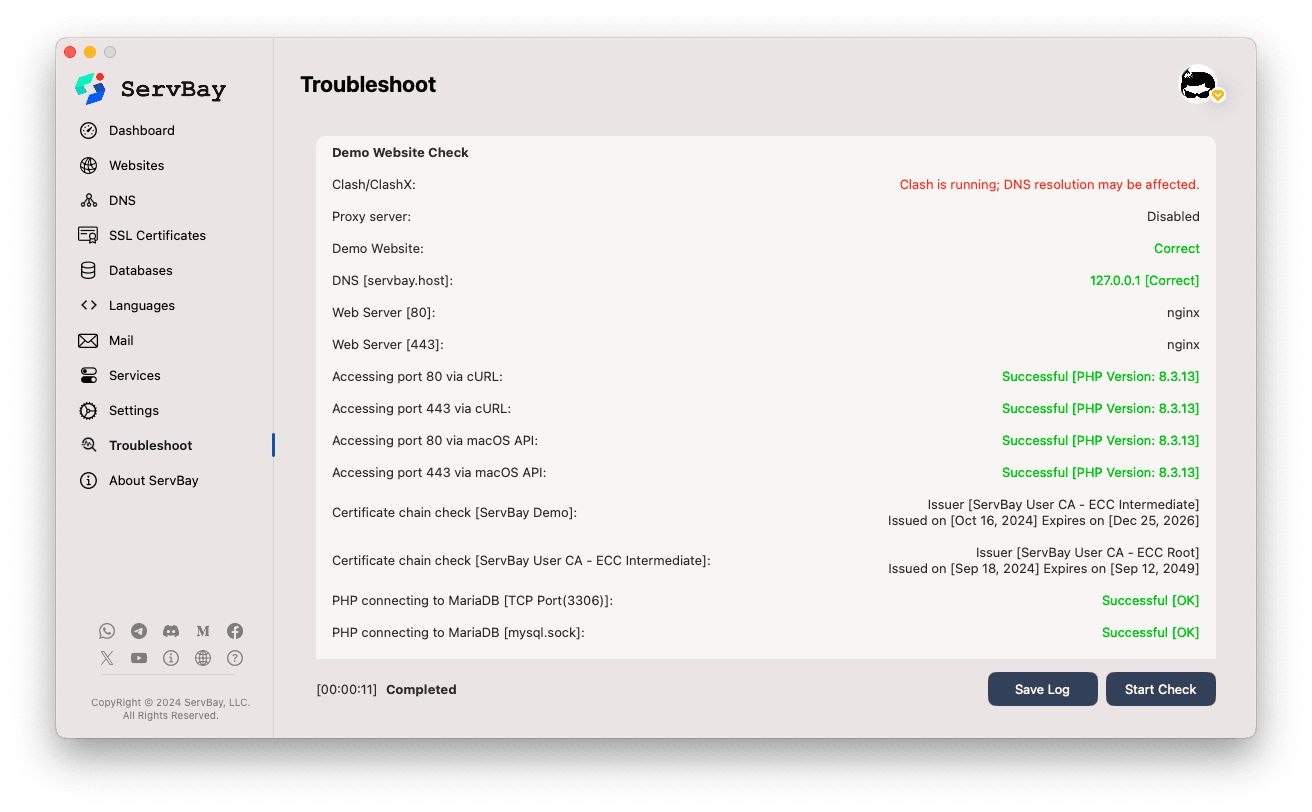
This tool checks the status of ServBay's core components, port usage, configuration file syntax, and more. It provides real-time prompts and suggestions to help you quickly pinpoint the root cause of problems.
Checking Web Server Configuration Files
Errors in web server configuration files are a common cause of website inaccessibility. ServBay provides dedicated syntax checking tools for each supported web server.
Checking Caddyfile
Use Caddy's built-in validate command to verify that your Caddyfile configuration is correct.
/Applications/ServBay/bin/caddy validate -c /Applications/ServBay/etc/caddy/CaddyfileIf the syntax is correct, the command will return Valid configuration. If there are errors, you’ll receive prompts based on the error type.
Note: The caddy validate command may output many INFO or WARN messages; these are typically from Caddy’s internal load process and are not necessarily errors. As long as you get Valid configuration in the end, the syntax is correct.
Common Caddyfile Error Examples
Certificate file not found:
bash2024/12/09 17:24:16.970 INFO using config from file {"file": "/Applications/ServBay/etc/caddy/Caddyfile"} ... (other INFO/WARN messages) ... Error: loading http app module: provision http: getting tls app: loading tls app module: provision tls: loading certificates: open /Applications/ServBay/ssl/private/tls-certs/mail.servbay.host/mail.servbay.host.1crt: no such file or directoryIf you see errors like
loading certificates: open xxxxx: no such file or directory, this means the SSL certificate file path specified in your Caddyfile is incorrect or the file does not exist. Double-check that the certificate (.crt/.cer/.pem) and private key (.key) paths in your site configuration are correct, and that the files actually exist at those paths. ServBay supports manual import and ACME auto-generation of SSL certificates—please verify your ServBay SSL settings accordingly.Incorrect root directory path (contains spaces):
bash2024/12/09 17:26:37.371 INFO using config from file {"file": "/Applications/ServBay/etc/caddy/Caddyfile"} Error: adapting config using caddyfile: parsing caddyfile tokens for 'root': too many arguments; should only be a matcher and a path, at /Applications/ServBay/etc/caddy/Caddyfile:1388The error
parsing caddyfile tokens for 'root': too many argumentsis typically caused by a space in the root directory path. For example, inroot * /Applications/ServBay/www/public web,public webwould be treated as two separate arguments. The correct way is to enclose paths containing spaces within double quotes:root * "/Applications/ServBay/www/public web".Suggestion: To avoid such issues, it's highly recommended to refrain from using spaces or special characters in file and directory names. You can use hyphens
-or underscores_for separation, such aspublic-folderorpublic_dir.Rewrite rule errors:
If invalid rewrite rules (for example, rules copied directly from NGINX) are used in the Caddyfile, syntax checking will fail. Refer to the Caddy Rewrite module documentation or ServBay's own Migration Guide from NGINX to ServBay to ensure your rules are correctly formatted.
NGINX Configuration Check
Use NGINX's built-in -t option to test the configuration file's syntax and validity.
/Applications/ServBay/bin/nginx -tIf everything is correct, the command will output:
nginx: the configuration file /Applications/ServBay/etc/nginx/nginx.conf syntax is ok
nginx: configuration file /Applications/ServBay/etc/nginx/nginx.conf test is successfulIf errors exist, NGINX will point out the exact file and line number containing the error. Common NGINX configuration mistakes include:
- Syntax errors: Such as missing semicolons (
;), or unmatched braces (}). - Incorrect file paths: Files or directories specified in
includeor other directives do not exist. - Port conflicts: The configured listen port is already in use by another process.
Apache Configuration Check
Use Apache’s apachectl configtest command to check the configuration syntax.
/Applications/ServBay/bin/apachectl configtestIf the configuration is valid, it will display Syntax OK. Otherwise, you'll get detailed error messages. Common Apache configuration errors include:
- Module load failures: A module specified in the configuration (
LoadModule) does not exist or the path is incorrect. - .htaccess syntax errors: Syntax errors in
.htaccessfiles within your site directories can cause Apache config check failures or directory access errors. - Directory permission misconfiguration: Permission directives like
Require,Allow, orDenywithinDirectoryorFilesblocks prevent access to web files.
Handling 500 Internal Server Errors
A 500 Internal Server Error is a generic HTTP status code indicating that the server encountered an unexpected condition that prevented it from fulfilling the request. For web applications, this often means that a backend script (e.g., PHP, Python, Node.js) failed to execute properly.
General Troubleshooting Steps
When you encounter a 500 error, follow these steps:
Check the Web Server Error Log: This is always the first step in diagnosing a 500 error. Error logs usually contain detailed information about what went wrong, such as script errors, missing files, or permission issues.
- Caddy:
/Applications/ServBay/var/logs/caddy/error.log - NGINX:
/Applications/ServBay/var/logs/nginx/error.log - Apache:
/Applications/ServBay/var/logs/apache/error.logCheck the most recent log entries for messages containingerrororcritical.
- Caddy:
Verify Backend Services (like PHP-FPM) are Running: If your site relies on PHP, make sure PHP-FPM is running.
bashps aux | grep php-fpmLook for lines containing
php-fpm: master processorphp-fpm: pool www. If the process isn’t there, PHP-FPM is either not running or has crashed. You can start PHP via the ServBay UI or using theservbayctlcommand.Check Backend Script (like PHP) Error Logs: If your web server logs indicate FastCGI or backend script errors, examine the corresponding language error logs.
- PHP:
/Applications/ServBay/var/logs/php/php_error.logLook forFatal error,Parse error,Warning,Notice, especially those related to the script you’re accessing. Ensuredisplay_errorsis off in production but can be enabled for development to see detailed error information (set inphp.ini).
- PHP:
Check File and Directory Permissions: Web servers typically run under a dedicated user (like
_www) and require adequate permissions to read site files/directories and write to upload or log directories.bashls -la /Applications/ServBay/www/your-site/Ensure the web server user has read access to the site root and its files/subdirectories. For uploads or log writing, write permissions are also needed. Use
chmodandchownto adjust, but proceed with caution.
500 Error Troubleshooting Tips for Specific Web Servers
Caddy:
- FastCGI Configuration: Check that the
php_fastcgiorreverse_proxydirective in your Caddyfile points to the correct PHP-FPM address (usually127.0.0.1:9000orunix:/path/to/php-fpm.sock). - PHP-FPM Status: Make sure the corresponding PHP version and PHP-FPM service are running in ServBay.
- Reverse Proxy Settings: If using
reverse_proxyto proxy traffic to another backend (e.g., Node.js), verify the backend address/port and ensure the service is running.
- FastCGI Configuration: Check that the
NGINX:
fastcgi_passDirective: Verify thefastcgi_passdirective innginx.confor your site's config points to the correct PHP-FPM address.client_max_body_size: If large file uploads result in 500 errors, this setting might be too small for your needs.try_filesDirective: Ensure thetry_filesdirective is correctly set so requests are routed to the appropriate index file or passed to FastCGI as needed.
Apache:
mod_rewriteModule: If you're using.htaccessfor URL rewriting, confirm that Apache'smod_rewriteis enabled.- .htaccess Content: Erroneous directives in
.htaccessfiles can directly cause 500 errors. Check syntax, especially rules likeRewriteRule. AllowOverrideSetting: Make sure the relevantDirectoryblock in your Apache config hasAllowOverrideset to allow the directives used in your.htaccessfile (usuallyAll, or at least includesFileInfoandLimit).
Service Management
After changing configuration files or fixing backend issues, you’ll typically need to restart the web server or related services for changes to take effect.
Restarting Services
Use the servbayctl restart command to restart a specific web server and its related services.
# Restart the Caddy service
servbayctl restart caddy -all

# Restart the NGINX service
servbayctl restart nginx -all

# Restart the Apache service
servbayctl restart apache -allThe -all option attempts to also restart companion services—such as PHP-FPM if FastCGI is configured with Caddy, NGINX, or Apache.
Checking Service Status
Use the servbayctl status command to view the current status of specific services.
# Check Caddy service status
servbayctl status caddy -all

# Check NGINX service status
servbayctl status nginx -all

# Check Apache service status
servbayctl status apache -allThe command output shows if the service is running, stopped, or another status—helpful to confirm successful startups.
Advanced Troubleshooting Steps
If the above steps don’t resolve your problem, try these deeper troubleshooting tips:
- Review Browser Developer Tools: Open your browser’s developer tools (usually via F12), and inspect the
ConsoleandNetworktabs. Look for front-end JavaScript errors, detailed HTTP status codes, response headers, and bodies to determine whether the issue is client-side or server-side. - Use the
curl -vCommand: In your terminal, runcurl -v your-website.servbay.demoto access your site. The-voption outputs detailed request/response info, including headers and SSL/TLS details. Replaceyour-website.servbay.demowith your actual ServBay site domain. - Temporarily Disable Firewall for Testing: Your local firewall (like macOS built-in firewall) or third-party security software may block incoming connections. Temporarily disable the firewall and test—if the problem resolves, update rules to allow ServBay ports (e.g., 80, 443).
- Test on Different Browsers/Devices: Try accessing your site from various browsers or devices to confirm if the issue is universal or limited to a particular setup.
- Check Local DNS or hosts File Settings: If you're using a custom domain (not
localhostor an IP), check/etc/hostsor your local DNS settings to verify the domain correctly resolves to127.0.0.1or::1.
Conclusion
Web server issues are a common challenge in local development. By systematically checking configuration syntax, analyzing error logs, verifying service status, and ensuring proper file permissions, most problems can be resolved quickly. Leverage ServBay’s built-in troubleshooting tools and servbayctl command-line utility as your reliable assistants. If you encounter complex issues, consult the ServBay documentation or reach out to technical support for further help.